
how to install iptv smarters pro:
Can one simple setup really get you live channels in under five minutes? If you have app store access or a trusted APK and your provider login ready, the answer is yes. This guide makes that promise and shows what fast looks like.
You’ll find clear steps for Android, Android TV, iPhone, iPad and Fire TV. The guide covers setup with Xtream Codes API or an M3U list, plus fixes for buffering, login errors, and missing EPG.
Note: initial sync of channels and VOD may take extra minutes depending on your network and provider. For HD, aim for ~20–30 Mbps; condo Wi‑Fi often needs an Ethernet win for smoother streaming.
Safety first: only download APKs from trusted sources to avoid malware or unstable mod builds. Follow the steps here and you’ll install the app, launch it, enter credentials, and start watching with fewer common mistakes.
Key Takeaways
- You can set up iptv smarters pro quickly if you have store access and login details.
- “Five minutes” refers to install time; full sync may need more time.
- Use Ethernet or faster Wi‑Fi in Canadian homes for steadier HD streaming.
- The guide covers Android, iOS, Fire TV, Xtream Codes API and M3U setup.
- Only get APKs from trusted sources to protect your device and data.
What IPTV Smarters Pro Is and What You Need Before You Start
Before you touch an app, know what this player actually does for your streaming setup.
iptv smarters pro is a universal client that organizes and plays streams from your subscription. It does not sell channels or replace your service. Stream quality and channel lineup come from your iptv provider, and the app handles playback, EPG, and playlists.
You’ll need a compatible device — phone, tablet, Android TV box, Fire TV, or iPad — plus a stable internet link. Aim for ~20–30 Mbps for HD; higher speeds help for 4K. Your provider usually supplies a username, password and server or an M3U URL. Watch for extra spaces, wrong URL format, or swapping username with email; those mistakes block login.
- Test Wi‑Fi at the TV; use Ethernet for steady evening streaming.
- Check device storage — Fire TV boxes fill fast and low space can crash the app.
- Keep app auto-updates on when using the store version for better stability.
Some Android TV boxes lack Google services, so a direct APK route may be needed. Pick the installation path that matches your device and comfort level for the next steps in this guide.
How to install iptv smarters pro on Android devices and Android TV boxes
Follow this quick path for Play Store installs or a secure APK fallback. Use the Play Store first if your device has it; that gives the smoothest updates and fewer permission steps.
Install from the Google Play Store and open the app
Open the Google Play Store, search the official listing for the player, verify the developer name, then tap Install. Once finished, find the icon in your apps drawer and launch app or open app from the home screen.
Use an APK on devices without the Play Store
For generic Android boxes that lack the Play Store, download an APK only from a reputable source. Avoid cracked builds and confirm the file completed before you run it.
Enable Unknown Sources safely
On modern Android, go to Settings > Apps & notifications > Special app access > Install unknown apps, then allow the browser or file manager you used. After installation, turn that permission off again for better security.
First launch tips, playback choices, and common setup mistakes
On first open, accept required terms and grant only the permissions the app needs. If storage access appears, allow it so playlists and EPG can save locally.
- Check details: enter server URLs and usernames exactly; extra spaces break logins.
- Playback options: switch decoder types or connect an external player (VLC or MX Player) if streams stutter.
- EPG sync: don’t assume it’s broken—give it a minute and refresh if needed.
Once the app is running on your device, the next step is adding provider details using Xtream Codes API or an M3U link.
Install IPTV Smarters Pro on iPhone and iPad using the App Store
On iPhone and iPad, the App Store route is the safest way to get the right player.
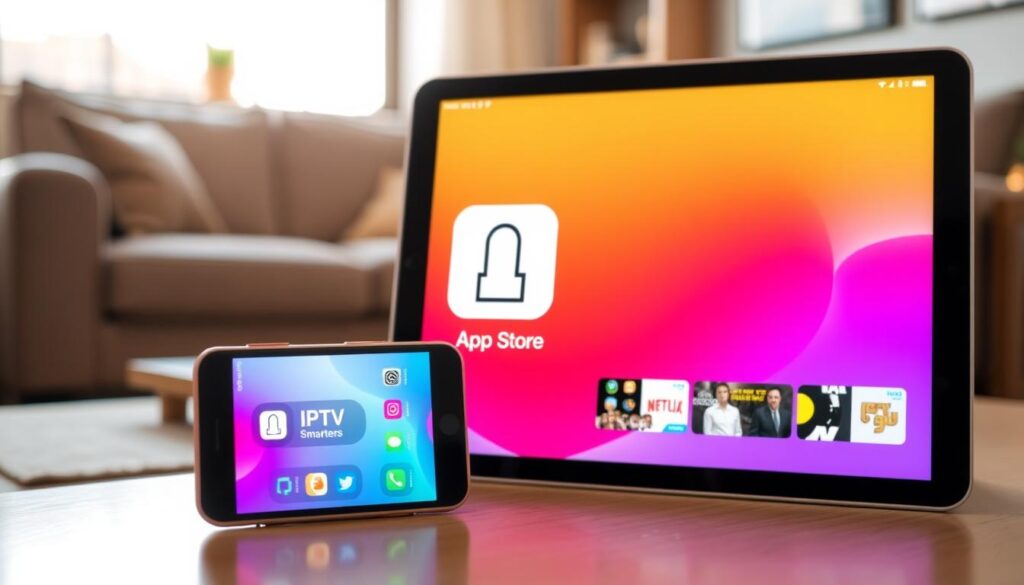
Find the official app: open the App Store and search for “iptv smarters pro” or “smarters player.” Check the developer name, reviews, and screenshots so you avoid look‑alike listings. If the exact title isn’t present, Smarters Player Lite is a common alternative with the same login flow.
Download, open app, and prepare service details
Tap Get, let the app download, then open app and accept any initial prompts. Grant only the permissions asked and follow the on‑screen tour until you reach the Add User or login screen.
- Provider details to have ready: Xtream Codes API credentials or an M3U URL, plus username and password.
- iPhone/iPad tips: keep iOS updated, pause large downloads, and use a strong Wi‑Fi signal for smoother playback.
- EPG and playlists: iOS may limit background refresh, so refresh inside the app when channel or guide updates are needed.
When you’re ready, proceed to the setup section for exact credential entry to prevent login errors on the first attempt.
Install IPTV Smarters on Firestick and Fire TV for fast streaming
If the app is missing from Amazon, your Fire TV box still has a quick sideload path that keeps streams steady.
Turn on Developer Options and allow apps from unknown sources
Open Settings → My Fire TV (or Device & Software) → Developer Options. Enable Apps from Unknown Sources and, if shown, ADB Debugging.
Use the Downloader app to download and install IPTV Smarters Pro
Search the store for Downloader and add the app. Use its browser field to enter a trusted website URL for the APK. Download, then tap Install.
Launch app and clean up the APK to save space on your Fire TV device
After installation choose Done rather than Open. Then delete the saved APK to free storage and prevent later freezes.
- Why Downloader: many Firestick users sideload because the player may not appear in the store.
- Safety tip: use reputable sources; avoid shortened links and random forum posts.
- Stability: if streaming is unreliable in Canada, move the box closer to the router, switch to 5 GHz, or use an Ethernet adapter.
Next: proceed to the following section to add your provider credentials and load channels, VOD, and EPG.
Set up IPTV Smarters Pro with your IPTV provider using Xtream Codes API or M3U
Pick a login path that matches the credentials your provider gave you and save a profile for easy switching.
Choose your login method: Xtream Codes API vs M3U playlist URL
Xtream Codes login often auto-loads categories, VOD, and EPG for a smoother setup. Use Login with Xtream Codes API when your service supplies API credentials.
Choose the Load Your Playlist or File/URL option if your provider only gives an M3U. That method works, but it may need manual grouping and EPG mapping.
Enter credentials correctly
Fill the profile name, username, password, and server URL exactly as provided. Keep capitalization the same and avoid trailing spaces that cause instant login failures.
If you manage multiple services, give each profile a clear name — for example, “Sports Pack” and “World News” — so you can switch quickly.
Let the app sync channels, VOD, series, and EPG
After login, smarters pro will sync live channels, movies, series, and the guide. The first pull can take a minute depending on your connection and provider.
Give the app time to finish. If EPG looks empty, refresh the guide or wait a short while for the server to respond.
Make your first watch smoother
- Add favorites and pin recent channels for faster access.
- Use multi-screen when you want more than one live channel on screen at once.
- Switch to an external player like VLC or MX Player if built-in playback stutters or a codec fails.
“Remember: the app is the player; stream uptime and stability depend on your provider.”
Common setup causes of issues: wrong URL format, expired subscription, or delayed EPG sources. If a login fails, verify credentials with your provider first.
Troubleshooting: buffering, login errors, EPG not loading, and app crashes
A predictable troubleshooting order saves time: test your network first, then the player, then the service. This keeps fixes quick and helps you know when to contact support.
Buffering fixes and network tips
Check your speed with a reliable test; aim for around 20–30 Mbps for HD and higher for 4K. Consistent throughput matters more than one fast spike.
Restart the router, switch from crowded 2.4 GHz to 5 GHz, and try Ethernet if Wi‑Fi has dead zones. If a stream still stalls, change decoder settings or use an external player to improve video playback.
Login issues and credential checks
Re-type every character in the username, password, and server URL—no extra spaces or swapped fields. If credentials look correct, confirm your subscription and test the profile on another device to isolate account versus device problems.
Fixing EPG and guide problems
Refresh the guide inside the app and clear EPG cache if available. Update the app so you aren’t fighting an old build that lacks recent EPG mappings.
Crashes, freezing, and device health
Clear cache and app data from system settings, free storage, and reinstall from a trusted source if needed. Check device compatibility and firmware; older boxes can cause repeated freezes.
If multiple devices fail at once, contact your provider—this often signals a server outage or broader service issue.
Conclusion
This final checklist puts every main step in one quick, readable pass.
Install the app on your device, open it, pick Xtream Codes API or an M3U link, enter provider details, and let channels and EPG sync.
Remember: iptv smarters pro is the player; your provider controls stream uptime, channel lineup, and quality. A strong network, free storage (especially on Fire TV), and keeping the app updated deliver the smoothest streaming wins.
Use favorites, multi‑screen, and an external player right away for a tidy viewing experience. If you prefer desktop setups, try IPTVnator or ProgDVB as alternatives.
If something breaks, follow the troubleshooting order: network → credentials → EPG → reinstall. Reach out to your provider if issues persist.