
How To Install IPTV On Nvidia Shield :
Ready for big‑screen streaming in Canada? This short guide shows what it means in practice: you add an IPTV player app to your Nvidia Shield TV or Shield TV Pro, then link it with your provider details so channels, VOD, and EPG appear in the Live TV menu.
You’ll learn simple steps — pick the right app from the Google Play Store, sign in or paste an M3U playlist or use Xtream Codes, then wait for channels and guides to populate. Most Canadians finish this in minutes using the Play Store.
Know the difference: your subscription is the service, and the player app is the tool that reads the playlist. If an app isn’t in the store, sideloading an APK is an option and this guide will cover that too.
Later sections preview the two common setup methods and quick troubleshooting checkpoints like permissions, unknown sources, and app conflicts so you won’t guess when something fails.
Key Takeaways
- You can set up IPTV on your Nvidia Shield using a player app and provider details.
- Choose Play Store apps first; sideload only if needed.
- M3U playlists and Xtream Codes are the two main setup paths.
- Expect channels, VOD, and EPG to appear after adding credentials.
- Quick checks like permissions and unknown sources fix most issues.
Before You Install IPTV on Your Nvidia Shield
Start by checking a short readiness list on your device; this saves time later. A quick check ensures the setup process goes smoothly and keeps buffering at bay.
Confirm your device is ready for streaming
Open Settings > About to check your Android TV version. Make sure your system has space for a new app and that updates are applied.
Test the connection — use Wi‑Fi or Ethernet and run a speed test. A stable connection reduces buffering, especially for HD and 4K streams.
Choose an app that fits how you watch
Pick an app from the Google Play Store with good EPG handling and fast channel switching. Look for simple menus if you mainly use Live TV, or strong VOD support if on‑demand matters.
Note: many apps are players only; they don’t include channels and some may ask for a paid license after a trial.
Get provider details before you start
Ask your iptv provider for an M3U URL or Xtream Codes (server, username, password). Some setups also need an EPG URL.
Keep credentials exact — capitals and no extra spaces. If details are missing, contact your provider for support before you begin.
How to install iptv on nvidia shield using the Google Play Store or Downloader
Use the Google Play route first; it’s the fastest way to add a trusted player and start watching on your big screen.
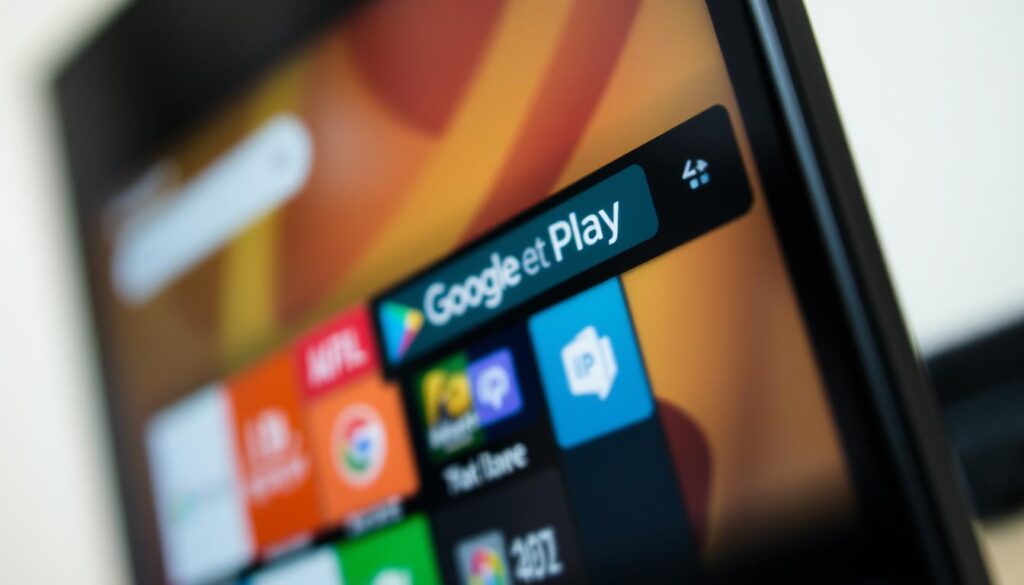
Install IPTV Smarters Pro from the Google Play Store
From your Shield home, open the Google Play app store. Use the search bar and type IPTV Smarters Pro so you land on the official listing fast.
Select the app from results, choose Install, then Open. On first run accept terms and add a user or playlist so channels and EPG can load.
Alternative players and quick search tips
If you prefer another option, try GSE Smart IPTV or Perfect Player. Both work well on Android TV devices and offer clean Live TV menus.
Use the Play Store search field to narrow results. Short queries cut down scrolling and find the right player faster.
Sideloading with Downloader when an app is unavailable
Only sideload when an app isn’t in the store for your region or you need a provider‑recommended APK version.
Enable Unknown Sources (Allow unknown apps) for the tool you’ll use, then install Downloader from the Play Store and grant file access.
In Downloader paste the APK link or code, start the download, pick Install when prompted, and Open the new app after setup finishes.
Quick install checks
- Free space and clear cache are first checks.
- If an install fails, uninstall any conflicting player and retry.
- Keep system updates current and grant basic permissions so playlists and EPG sync correctly.
Set Up Your IPTV Playlist and Start Watching Channels
First, accept the app terms and add a new user profile; this creates a place for your playlist and EPG settings. That profile holds your saved playlist and guide data so the player can sync properly.
Load an M3U URL with a clear playlist name
Choose the M3U URL option, give the name a label you recognize like “Sports Playlist,” paste the exact url from your provider, and save. The app will import channel groups and VOD entries.
Use Xtream Codes with server, username, and password
If your service uses Xtream Codes, pick that option and enter the server url, username, and password. Save the user so the player can pull iptv channels and the VOD library.
Wait for channels, VOD, and guide data
Channels and some content appear quickly, but EPG often continues loading in the background. Give it a few minutes before you change settings.
- If channel count stays zero, recheck server details, missing http/https, or capitalization.
- Open the menu → Live TV, pick a category, and select a channel to watch.
- Use favorites, recent channels, search, and EPG features for fast access.
Conclusion
Finish by checking the player shows channels and the EPG is building.
Pick a reliable app from the Google Play Store for your nvidia shield and use Downloader only when the Play Store option is not available. Add your M3U URL or Xtream Codes, then wait a few minutes while channels, VOD, and the guide populate.
If content stays missing, re-check the server URL, username, and password exactly. Small typos cause most issues. Keep a strong internet connection; use Ethernet if Wi‑Fi is unstable and close other apps if playback lags.
If installs fail or streams remain blocked, contact your provider for support and consider a VPN if your ISP is throttling streaming. When everything works, open Live TV, set favorites, and enjoy a tidy, cable‑style experience on your device.