
How to Fix IPTV Playlist Not Loading Best Guide in 2026
Have you ever opened your player and found zero channels or a stream that just won’t play?
You can often solve this with a few clear checks. Start by naming what “playlist not loading” means for your setup: won’t import, shows no channels, opens but won’t play, or plays and buffers. That focus saves time and avoids chasing the wrong fix.
Follow a simple order: validate the M3U structure, test stream links, clean the file, then rule out buffering and routing. Each step tells you whether the problem is the file, the stream URL, the app, or your network.
Use only authorized streams and public broadcasts, and remember that editors or checkers do not bypass DRM, geo-blocks, or access controls. Expect cleaning to improve reliability, but it won’t revive dead sources.
Key Takeaways
- First clarify the exact loading behavior so you pick the right path.
- Work in order: validate, test links, clean, then check buffering and routing.
- Use only playlists and streams you are authorized to access.
- Playlists tools do not bypass DRM or regional restrictions.
- Cleaning a file boosts player speed but won’t fix dead streams.
Quick checks before you troubleshoot deeper
A short set of fast checks can save you time before deeper troubleshooting.
Confirm your internet connection with a speed test
First, verify your internet and ensure the connection is steady. Run a reliable speed test and watch for consistent results, not a single peak. Many providers recommend about 10–15 Mbps per HD stream for smooth streaming performance.
Restart your router and device
Power cycle your router and any modem for about a minute, then restart your streaming device. Temporary routing glitches and app hangs often mimic playlist problems.
Update software and clear app cache
Check for app and device software updates in settings. Update the app and firmware if available. If you still see a blank screen or an endless update message, clear app cache or app data to refresh stored files.
“Reboots and updates fix a surprising number of streaming errors.”
- Limit heavy network traffic while testing.
- Note exact error text; it often points to authentication or timeout issues.
- Try Ethernet if Wi‑Fi seems unstable for better performance.
Common reasons IPTV playlists stop working right now
Empty menus, dead links, and jittery streams each trace back to predictable root causes.
Playlist shows zero channels because of file formatting
If your file imports but shows no channels, file structure often fails first. Missing #EXTM3U, malformed #EXTINF lines, odd encoding, or truncated data will stop an app from parsing entries.
Use a plain-text editor and check line endings and character set before blaming the service.
Playlist loads yet channels won’t play when links are dead or restricted
A valid m3u can still point at expired or restricted url entries. HTTP 401/403 means denied access, while 404/410 signals removed streams.
Expired subscription tokens or service-side limits often mimic local file errors.
Channels play but keep buffering due to routing or server load
Jitter and rebuffering often come from routing, DNS, server distance, or heavy host load rather than raw bandwidth.
Try a different DNS or a wired connection to rule out local network issues.
Works in one player but not another because apps parse differently
Some players enforce strict m3u parsing, URL encoding, header support, or codec rules. If one app accepts the file and another rejects it, parsing differences are likely.
“Separate file-level errors from server-side faults so each fix is targeted.”
- Zero channels: check encoding and tags.
- Loads but won’t play: verify urls and access rights.
- Buffering: test routing and server quality.
- Cross-player checks: confirm app parsing and header needs.
How to Fix IPTV Playlist Not Loading by validating your M3U playlist
Start by opening the playlist file in a plain-text editor and scanning the top lines for format markers.
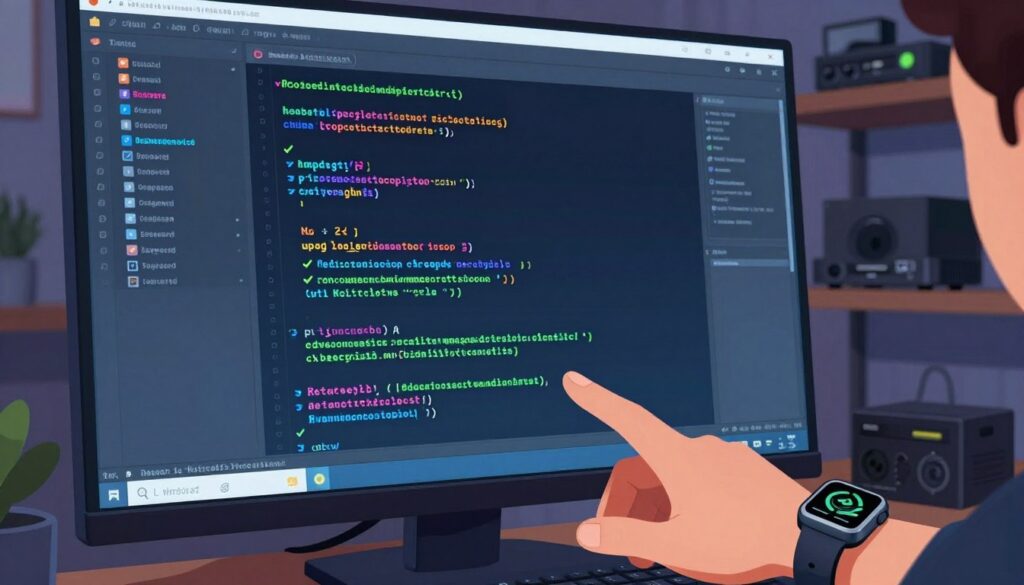
Validation is the fastest way to rule out file-level errors. Confirm the file begins with #EXTM3U. Many players require that header to recognize a playlist format.
Check structure and entries
Each channel must have a proper #EXTINF line followed by a valid stream url on the next line. If lines are merged, missing, or contain hidden characters, an app may import nothing.
Avoid rich-text editors
Do not edit the file in Word, Google Docs, or other rich-text tools. Those programs add hidden markup and change line endings. Use Notepad, TextEdit (plain), or VS Code for safe edits.
Convert a web url for testing
If you only have an m3u url, save its text as a .txt file. That lets you run quick checks, search entries, and validate in seconds. Keep validation fast and methodical so you can decide within minutes whether the file or the streams need further testing.
- Confirm #EXTM3U header
- Verify each #EXTINF + url pair
- Check encoding and line endings
“Validate first, then test links — it shortens troubleshooting and avoids wasted steps.”
Test stream links to find broken channels fast
Testing individual urls pinpoints broken channels in minutes, not hours. Start with a quick scan and mark each entry as WORKING, BROKEN, or UNKNOWN. That stops guessing and speeds up troubleshooting.

Use HTTP codes as your shortcut
Read status codes for fast clues. 200 means the stream is reachable. 401/403 shows restricted access. 404/410 signals a removed link. Repeated timeouts point at routing or server instability and may cause buffering.
Spot patterns and retest at different times
If many channels fail at once, you likely face a server outage or overloaded source. If failures appear only during peak time, try again later or within a few minutes.
- Scan your playlists and label each entry so you know what to fix.
- Use status codes as a diagnosis; match codes to the proper action.
- Treat UNKNOWN results as candidates for retest on another network or player.
“A short, methodical check saves time and points you toward real solutions.”
Clean and optimize the playlist for faster loading and fewer errors
A quick prune of broken links and messy names can make your playlist feel much snappier.
Remove or comment out broken entries
Start by scanning entries and marking ones that return errors or time out. You remove or comment those lines so your player stops stalling while trying dead urls.
Pro tip: Commenting preserves data if you need to restore an entry later.
Tidy formatting, names, and groups
Standardize channel labels and group tags so apps parse entries cleanly. Short, consistent names improve browsing on TV interfaces and reduce parsing issues that cause errors.
Export a smaller, cleaner file for better performance
Save a trimmed copy and keep the original as a backup. A smaller file cuts loading time and speeds up channel switching, especially on lower‑powered devices.
Know what cleaning does and doesn’t do
Cleaning improves in‑app reliability but it does not repair an unusable stream or raise quality from the source. Use cleaning results as data to contact your services for updated links or better settings.
“A clean file makes your player spend time on working streams, not chasing dead ones.”
- Remove/comment broken entries so the player won’t stall.
- Tidy names and groups to reduce parsing errors.
- Keep backups and export a lean copy for better performance.
Fix buffering and freezing that looks like a playlist problem
Buffering often hides a network problem rather than a broken file.
Start by checking your connection with a different network or by plugging in Ethernet. A wired link often stabilizes streaming and isolates Wi‑Fi congestion.
Change DNS if you see intermittent timeouts. Switching to a reliable resolver can improve routing and cut down delays to distant servers.
Lowering bitrate or resolution in your app can make playback steady on marginal internet. A small drop in quality often removes repeated buffering and gives better performance on slower links.

Run a buffering test and follow one step at a time
Run a buffering test to see whether the problem is your network or the server. If a hotspot works but your home network stalls, focus on the router and local setup.
“Make one change at a time so you know which step improved streaming performance.”
- Test a second network or use Ethernet to rule out Wi‑Fi congestion.
- Swap DNS to a known resolver when intermittent failures appear.
- Lower resolution/bitrate if the app offers that option.
- Watch for peak‑hour slowdowns; repeated timeouts can mean server load issues.
Restart your router and device as a quick, low-effort step. Consider a VPN only if ISP throttling is likely, but remember it can add latency and sometimes worsen buffering.
App and device troubleshooting when playlists won’t load
App crashes and missing channels usually come down to a few simple device steps you can run in minutes.
IPTV Smarters Pro — quick fixes for crashes, login issues, and missing channels
Clear the app cache and confirm your subscription credentials or url are correct. Update the app and reinstall if crashes persist.
Try an external player like VLC when the internal player fails to decode streams.
TiviMate — settings that affect playback, decoding, and buffer
Clear cache/data, toggle hardware decoding, and increase buffer size in settings. These changes often stop playback errors on low‑power devices.
Smart IPTV — upload and refresh steps for a blank screen
Re‑upload your file via the Smart IPTV website, then restart the app. If entries won’t refresh, clear app data and force a reload.
XCIPTV and GSE Smart IPTV — fixes for black screens and missing channels
Force stop, clear cache, re‑enter credentials, and update the app. Switch internal vs external player when video stays black.
When to switch internal versus external player
Use an external player when codecs fail or the internal player shows stutter. If the same url fails across multiple devices and networks, contact provider support for refreshed links.
“Try one change at a time so you know which step fixed the error.”
- Clear cache first, then move to reinstall.
- Toggle hardware decoding when video artifacts appear.
- Contact support if problems persist across devices and networks.
Conclusion
Quick checklist, close your session by confirming whether the issue lives in the file, the network, or the service.
Validate the M3U structure first, then test stream links with status codes. Clean dead or restricted entries and rule out buffering by checking DNS, routing, or your router and connection.
If a blank screen or endless loading appears, re-upload or refresh the file, try another player, and check behavior across devices. Many failures trace back to the server or an active service limit, so contact support when a subscription shows active but channels remain broken.
Keep expectations realistic: cleaning boosts reliability but won’t restore dead streams. Use this repeatable flow for fast troubleshooting and clear next steps when questions remain about streaming quality or server issues.