
How to Install IPTV on Nvidia Shield

How To Install IPTV On Nvidia Shield :

Ready for big‑screen streaming in Canada? This short guide shows what it means in practice: you add an IPTV player app to your Nvidia Shield TV or Shield TV Pro, then link it with your provider details so channels, VOD, and EPG appear in the Live TV menu.

You’ll learn simple steps — pick the right app from the Google Play Store, sign in or paste an M3U playlist or use Xtream Codes, then wait for channels and guides to populate. Most Canadians finish this in minutes using the Play Store.

Know the difference: your subscription is the service, and the player app is the tool that reads the playlist. If an app isn’t in the store, sideloading an APK is an option and this guide will cover that too.

Later sections preview the two common setup methods and quick troubleshooting checkpoints like permissions, unknown sources, and app conflicts so you won’t guess when something fails.

Key Takeaways

  • You can set up IPTV on your Nvidia Shield using a player app and provider details.
  • Choose Play Store apps first; sideload only if needed.
  • M3U playlists and Xtream Codes are the two main setup paths.
  • Expect channels, VOD, and EPG to appear after adding credentials.
  • Quick checks like permissions and unknown sources fix most issues.

Before You Install IPTV on Your Nvidia Shield

Start by checking a short readiness list on your device; this saves time later. A quick check ensures the setup process goes smoothly and keeps buffering at bay.
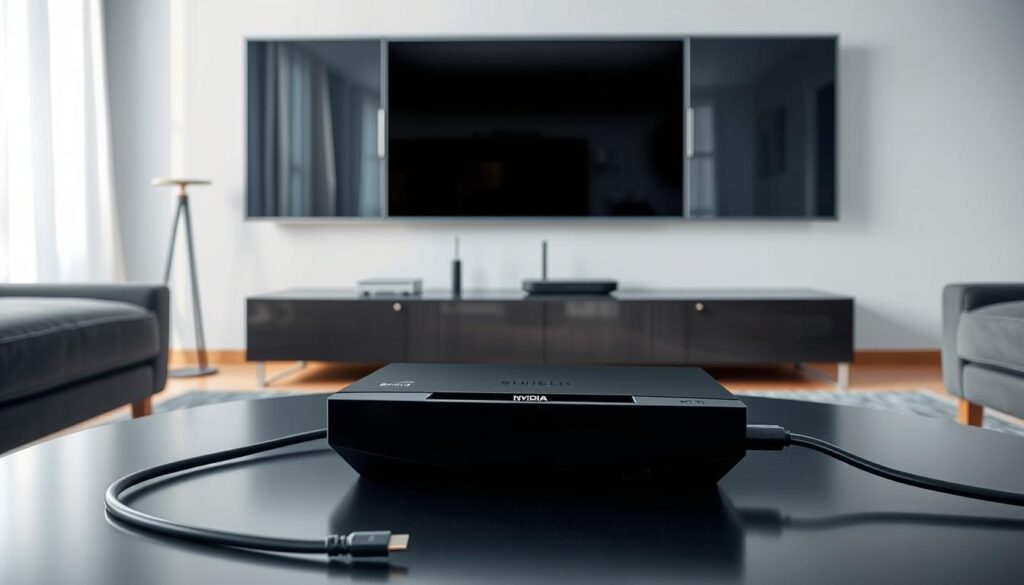
A sleek, modern living room featuring an Nvidia Shield streaming device prominently on a coffee table. In the foreground, show a slim HDMI cable connecting the device to a large, flat-screen TV, highlighting the connection. The middle ground should include a minimalist shelf with other tech gadgets, like a remote control and a wireless router, creating an organized tech setup. In the background, a soft-lit window allows natural light to flood the room, adding warmth and clarity. The scene should convey a sense of readiness and excitement for technology, with a cool color palette featuring shades of black, silver, and soft blue, evoking a modern yet inviting atmosphere.

Confirm your device is ready for streaming

Open Settings > About to check your Android TV version. Make sure your system has space for a new app and that updates are applied.

Test the connection — use Wi‑Fi or Ethernet and run a speed test. A stable connection reduces buffering, especially for HD and 4K streams.

Choose an app that fits how you watch

Pick an app from the Google Play Store with good EPG handling and fast channel switching. Look for simple menus if you mainly use Live TV, or strong VOD support if on‑demand matters.

Note: many apps are players only; they don’t include channels and some may ask for a paid license after a trial.

Get provider details before you start

Ask your iptv provider for an M3U URL or Xtream Codes (server, username, password). Some setups also need an EPG URL.

Keep credentials exact — capitals and no extra spaces. If details are missing, contact your provider for support before you begin.

How to install iptv on nvidia shield using the Google Play Store or Downloader

Use the Google Play route first; it’s the fastest way to add a trusted player and start watching on your big screen.
A close-up view of a Google Play Store search bar, prominently displayed in the foreground against a blurred background of a sleek Nvidia Shield device. The search bar features a vibrant, modern design with a slightly rounded shape, showcasing the recognizable Google Play logo in the corner. Soft, diffused lighting highlights the contours of the search bar, creating a warm and inviting atmosphere. The background showcases a subtle gradient that suggests a home screen filled with app icons, out of focus to emphasize the search bar. Capture the image from a slightly elevated angle, enhancing the depth and dimensionality while maintaining a professional and polished look.

Install IPTV Smarters Pro from the Google Play Store

From your Shield home, open the Google Play app store. Use the search bar and type IPTV Smarters Pro so you land on the official listing fast.

Select the app from results, choose Install, then Open. On first run accept terms and add a user or playlist so channels and EPG can load.

Alternative players and quick search tips

If you prefer another option, try GSE Smart IPTV or Perfect Player. Both work well on Android TV devices and offer clean Live TV menus.

Use the Play Store search field to narrow results. Short queries cut down scrolling and find the right player faster.

Sideloading with Downloader when an app is unavailable

Only sideload when an app isn’t in the store for your region or you need a provider‑recommended APK version.

Enable Unknown Sources (Allow unknown apps) for the tool you’ll use, then install Downloader from the Play Store and grant file access.

In Downloader paste the APK link or code, start the download, pick Install when prompted, and Open the new app after setup finishes.

Quick install checks

  • Free space and clear cache are first checks.
  • If an install fails, uninstall any conflicting player and retry.
  • Keep system updates current and grant basic permissions so playlists and EPG sync correctly.

Set Up Your IPTV Playlist and Start Watching Channels

First, accept the app terms and add a new user profile; this creates a place for your playlist and EPG settings. That profile holds your saved playlist and guide data so the player can sync properly.
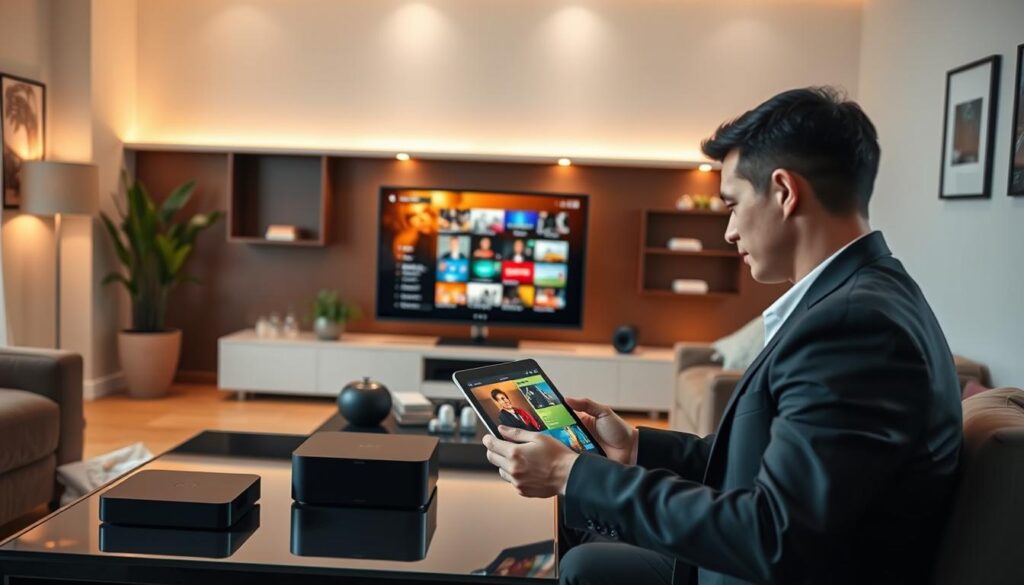
A modern living room setting designed for entertainment, showcasing an elegant coffee table with a sleek IPTV device and a tablet displaying a vibrant digital playlist interface. In the foreground, a person, dressed in smart casual attire, browses the playlist on the tablet, their face illuminated by soft, warm lighting. In the middle, a large flat-screen TV features a colorful IPTV channel guide on the screen, while comfortable couches and decorative plants create a cozy atmosphere. The background includes subtle wall art and inviting lighting that enhances the room's ambiance, suggesting relaxation and enjoyment in watching channels. The image captures a sense of anticipation and excitement, reflecting modern home entertainment.

Load an M3U URL with a clear playlist name

Choose the M3U URL option, give the name a label you recognize like “Sports Playlist,” paste the exact url from your provider, and save. The app will import channel groups and VOD entries.

Use Xtream Codes with server, username, and password

If your service uses Xtream Codes, pick that option and enter the server url, username, and password. Save the user so the player can pull iptv channels and the VOD library.

Wait for channels, VOD, and guide data

Channels and some content appear quickly, but EPG often continues loading in the background. Give it a few minutes before you change settings.

  • If channel count stays zero, recheck server details, missing http/https, or capitalization.
  • Open the menu → Live TV, pick a category, and select a channel to watch.
  • Use favorites, recent channels, search, and EPG features for fast access.

Conclusion

Finish by checking the player shows channels and the EPG is building.

Pick a reliable app from the Google Play Store for your nvidia shield and use Downloader only when the Play Store option is not available. Add your M3U URL or Xtream Codes, then wait a few minutes while channels, VOD, and the guide populate.

If content stays missing, re-check the server URL, username, and password exactly. Small typos cause most issues. Keep a strong internet connection; use Ethernet if Wi‑Fi is unstable and close other apps if playback lags.

If installs fail or streams remain blocked, contact your provider for support and consider a VPN if your ISP is throttling streaming. When everything works, open Live TV, set favorites, and enjoy a tidy, cable‑style experience on your device.

FAQ

What do you need before setting up IPTV on your Nvidia Shield?

Make sure your Shield TV or Shield TV Pro is connected to the internet, updated to the latest firmware, and paired with a Google account. Have your IPTV provider details ready — either an M3U playlist URL or Xtream Codes (server URL, username, password). Keep your remote and network password nearby for a smooth set up.

Which IPTV player app should you choose from Google Play?

Choose a player that matches how you watch. IPTV Smarters Pro is popular for its user interface and EPG support. GSE Smart IPTV and Perfect Player IPTV are solid alternatives if you want different layout or codec options. Check features like playlist support, EPG compatibility, and video buffering settings before downloading.

How do you find an IPTV app fast in the Google Play Store?

Use the search bar on your Shield’s Play Store and type the app name exactly (for example, “IPTV Smarters Pro”). Sort results by relevance and verify developer and reviews. Look for recent updates to ensure app compatibility with your device.

What permissions should you allow after installing the player app?

Grant network, storage, and optionally microphone permissions if the app offers voice search. Allowing storage access lets the player cache content for smoother playback. You can adjust permissions later in Settings if you change your mind.

When do you need to sideload an IPTV app instead of using Play Store?

Sideloading is needed if your preferred app isn’t available in Google Play for Android TV or if the developer distributes an APK directly. Sideloading lets you install apps that aren’t listed for the Shield’s platform.

How do you enable installs from unknown sources on the Shield?

Go to Settings > Device Preferences > Security & restrictions. Turn on “Unknown sources” for the app (like Downloader) you’ll use to install APKs. This allows installation of apps outside Google Play while keeping other apps restricted.

What is Downloader and why install it from Play Store?

Downloader is a small app that downloads APK files directly to the Shield. Install it from Google Play, open it, enter the APK URL provided by the app developer, and use it to fetch and run the installer safely.

How do you complete APK installation using Downloader?

Enter the APK link in Downloader, wait for the file to download, then choose “Install” when prompted. After installation, you can run the app and remove the APK to free storage. Disable unknown sources afterward if you prefer more security.

What common install conflicts might block an IPTV app and how do you fix them?

Conflicts include insufficient storage, outdated firmware, Play Store restrictions, or corrupted APKs. Free up space, update Shield software, re-download the APK from a trusted source, or reinstall the app from Play Store if available.

How do you add a playlist using an M3U URL in your IPTV player?

Open your player, accept terms, and create a user profile if prompted. Look for “Add Playlist” or “Add M3U URL,” paste the M3U link, give it a playlist name, and save. The app will fetch channels and categories automatically.

How do you add channels using Xtream Codes credentials?

Choose the Xtream Codes or API login option in the player, then enter the server URL, your username, and password provided by the IPTV service. Save the profile and allow the app to import live channels, VOD, and EPG data.

How long does it take for channels, VOD, and EPG to load?

Loading time varies with playlist size and network speed. Small lists appear in seconds; large playlists or full EPG imports can take a few minutes. Leave the app open while it syncs and avoid network-heavy activity during the initial load.

Where do you find Live TV, categories, and features in the player?

Use the app’s main menu or sidebar. Look for sections labeled Live TV, Categories, Movies/VOD, or EPG. The remote’s directional buttons navigate guides and submenus; you can mark favorites and adjust playback settings from these screens.

What should you do if channels buffer or fail to stream?

Check your internet speed and connect Shield via Ethernet if possible for stability. Lower stream quality in the player, restart the app, or contact your IPTV provider for server-side issues. Clearing app cache can also improve playback.

Can you use external players or casting with your IPTV app?

Many players support external players like VLC or MX Player. In the player’s settings, choose “External player” and select your preferred app. Casting options depend on the player; some support Chromecast and DLNA for external screens.

How do you get support if your IPTV service won’t connect?

Contact your IPTV provider first; they can confirm account status, server changes, or credential updates. If the provider checks out, review app logs, update the player, or try reinstalling. Provider support channels often include email, live chat, or a support portal.

Leave a Comment

Your email address will not be published. Required fields are marked *