
How to Fix IPTV Freezing Issues:
Ever wondered why your favorite show pauses at the worst moment? That jarring pause is often not the app but your internet path: slow speeds, congested routing, or Wi‑Fi drops can turn smooth streaming into constant buffering.
You can get most problems fixed at home in minutes if you follow a clear order instead of flipping random settings. Start with quick restarts and a speed check; many users see instant gains.
In this Canada-focused guide you’ll learn to spot symptoms, try fast fixes, and move through connection upgrades, player tuning, device steps, VPN checks, and provider validation. The aim isn’t only to stop buffering once, but to reduce repeat nightly slowdowns.
Before you start, jot down quick observations: time of day, which channels lag, and which device shows the issue. Those notes help you separate network faults from service-side problems and narrow the root cause faster.
Key Takeaways
- Buffering often stems from internet delivery, not just the app.
- Quick restarts and a speed test resolve many common problems.
- Follow a step-by-step path for faster diagnosis and repair.
- Test during peak hours in multi-device Canadian homes for accurate results.
- Collect basic observations to speed up troubleshooting.
Spot the Symptoms of IPTV Freezing and Buffering
Pay attention to what happens when playback stutters — the symptoms point to where you should look next.
Visual clues are the quickest signs you’ll see: a spinning wheel, loading messages, pixelation, or abrupt pauses. A spinning wheel usually means delivery is slow. Pixelation or blocky frames often point at low bandwidth or packet loss. Sudden full stops can mean heavier congestion or stream drops.
Micro-stutters — tiny freezes — differ from full stops. Both suggest unstable delivery rather than a one-off bug. If freezes happen repeatedly, it often signals ongoing buffering or poor routing.
Audio and sync problems
Audio that drifts out of sync or drops in quality can show decode trouble or fluctuating throughput. Lip-sync delay often points at processing lag on your device or intermittent bandwidth.
Distinguishing other faults
If many channels fail at once, especially during peak hours, you may be facing a server or provider outage. If the app closes, shows a black screen, or forces a reboot, that’s likely a device crash.
- Check for login errors like timeouts or “server unreachable” before diagnosing playback.
- Test several streams briefly — isolated failures suggest one feed; widespread ones point at your network or iptv service.
- Note exact error messages and when the problem appears (peak times help spot provider load).
Next step: once you’ve identified the symptom pattern, try the fastest fixes first before deeper changes.
Quick Fixes You Can Try Right Now
Start with a few fast steps that often clear buffering in under five minutes.
Restart your modem, router, IPTV device, and the IPTV app
Unplug modem and router for about 30 seconds. Then restart your streaming device and fully close and reopen the iptv app so it rebuilds its session.
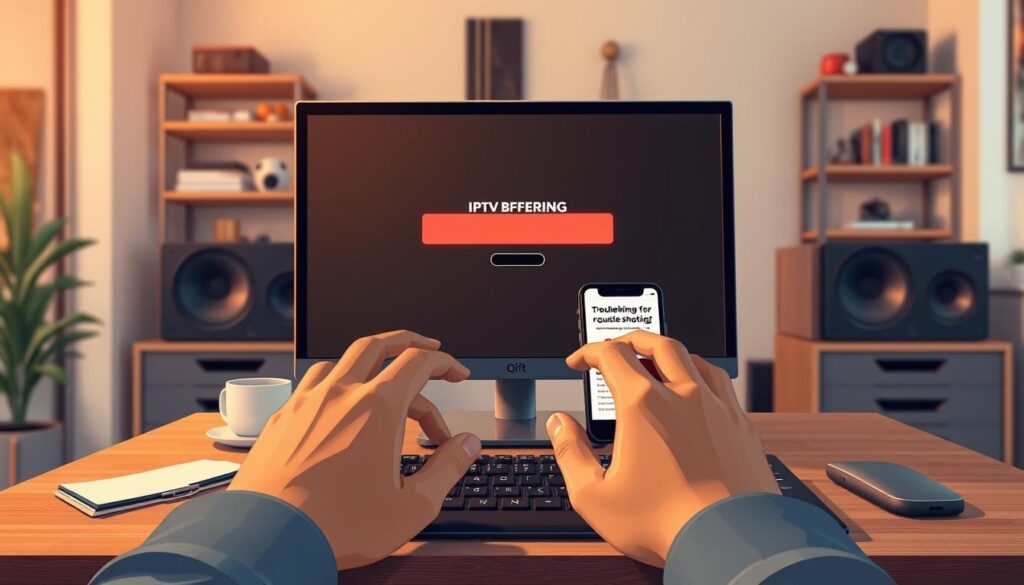
Run an internet speed test and compare needs
Use a simple speed test (like fast.com) and check internet numbers. For stable viewing you want consistent internet speed, not a brief spike.
Switch to Ethernet cable or 5 GHz Wi‑Fi
Plug an ethernet cable when possible for fewer drops and lower jitter. If wired is not available, move your device to 5 GHz for less interference in crowded buildings.
Clear cache and temporary files
Clearing cache removes corrupted temp files that cause slow menus and playback hiccups. On Android go to App Settings → Storage → Clear Cache. On Firestick use Settings → Applications → Manage Installed Applications → Clear Cache.
- Restart sequence: unplug modem/router ~30 seconds, then reboot device and app.
- Run a speed test and repeat during peak hours for accurate results.
- Prefer an ethernet cable for the most stable connection.
- Clear cache, then restart the app so the player rebuilds temp data.
Success looks like buffering stopping across multiple channels. If problems return at certain times or only in HD/4K, it’s time to check your provider or upgrade your plan and fix iptv buffering long term.
How to Fix IPTV Freezing Issues by Improving Your Internet Connection
A steady internet connection is the single biggest factor that keeps streaming smooth in busy Canadian homes.
Internet speed targets for HD and 4K
Set realistic speed goals. For reliable streaming plan on at least 10 Mbps for HD and about 25 Mbps for 4K. These are the least mbps you should expect for one clear stream.
Remember that your headline speed from a provider can differ from real-world performance. Consistent Mbps matters more than a short peak number when lots of devices share the line.
Manage bandwidth when multiple devices are active
When multiple devices stream, congestion and jitter can cause freezes even if a speed test looks good. Pause large downloads, cloud backups, and game updates during prime viewing.
- Use router QoS or traffic prioritization so video gets priority.
- Limit simultaneous high-bitrate streaming when the home is busy.
- Watch for background apps that steal bandwidth and CPU.
Optimize router placement and know when to upgrade
Place your router central and elevated, away from thick walls and noisy electronics like microwaves. Good placement reduces signal drops on Wi‑Fi and improves network stability.
If your household regularly falls below the least mbps targets during peak times, consider an internet plan upgrade. Choose a plan that gives headroom for multiple streams and future needs.
Optimize Your IPTV App and Player Settings for Better Performance
A few targeted changes in your app settings can make video playback far smoother.
Lower video quality when bandwidth drops. Drop 4K to 1080p, then 720p if needed. This often stops buffering while keeping the picture enjoyable.
Switch decoders and enable hardware acceleration
Try hardware decoding first. If the app still freezes, switch to software decoding. Some devices handle HW acceleration better, which improves performance and reduces CPU load.
Adjust buffer size and playlist loading
Increase buffer for smoother playback, or trim it if channel changes feel sluggish. Larger buffers trade faster channel swaps for fewer interruptions. Test one change at a time.
Limit background traffic and apps
Pause auto-updates, stop cloud sync, and close unused apps. Background traffic steals speed and CPU, which makes buffering worse.
- Use a lighter player if your current app is heavy.
- Test a few problem channels for 10–15 minutes after each change.
- Note which setting improved stability so you can repeat it later.
Device-Specific Fixes for Common IPTV Freezing Problems
Single-device buffering usually points at local performance, not the service or your whole network.

Android TV and Android boxes
Low storage and old firmware slow your device. Keep free space available and update the OS and app regularly.
Clear cache: Android Settings → Apps → (your IPTV app) → Storage → Clear Cache. This often fixes playback hiccups fast.
Fire Stick
Clear cache and use a weekly restart or power cycle to refresh memory and sessions.
Prevent overheating by improving airflow, avoiding tight spaces, and not stacking the player behind the TV. Heat can throttle performance.
Smart TVs
Built-in apps may run on weaker chips and offer fewer decoder options. If the app lags, try a dedicated streaming device for better performance.
Check network settings and prefer a wired link or 5 GHz Wi‑Fi for higher speed and lower jitter.
Mobile devices
Stick to a strong Wi‑Fi signal, close heavy background apps, and avoid crowded public networks that cause packet loss and jitter.
- If only one device buffers, optimize that device first.
- If many devices freeze at once, move on to VPN or provider checks.
Use a VPN When Your ISP Is Throttling or Blocking IPTV
If your streams slow only at night, a VPN can reveal whether your provider is shaping traffic. This is common between 6–11 PM when many households load the internet. A VPN encrypts your traffic so your ISP can’t easily throttle streaming, and it can reroute you along a better path to the remote server.

When a VPN helps most
Look for timing patterns: clear playback earlier in the day, then buffering spikes at peak time suggests throttling.
A VPN often improves routing and bypasses geo-blocks or carrier filtering that hurt streaming.
Pick protocols and servers wisely
Use WireGuard for speed and low overhead. Prefer UDP where the VPN app offers it for smoother real-time video delivery.
Choose a nearby Canadian server for lower latency, or a server near your service’s region if you face geo-restrictions. Test 2–3 servers: overcrowded servers can cause buffering even with a fast internet plan.
Protect the stream and limit load
Enable a kill switch and auto-reconnect so brief VPN drops don’t hang your player or force rebuffering.
Use split tunneling so only the IPTV app uses the VPN, keeping other services on your regular connection and reducing overall traffic.
- Order of operations: connect the VPN first, then open your IPTV app or reload the stream.
- Test during peak time to confirm improvement before changing plans or hardware.
Check for IPTV Provider and Server Issues Before You Change Your Setup
Don’t rush into hardware swaps — verify whether the service or server is the real cause first.

Signs the problem is provider-side
Look for consistent patterns: if many channels fail, multiple devices freeze, or trouble appears at peak time, the provider or server may be overloaded.
Quick isolation steps you can run
- Try several channels and a VOD stream if available, and repeat the same stream at a different time.
- Switch stream formats or lower quality (if the service allows) to see if playback improves.
- Run a simple control test: open the same account on a second device or use a mobile hotspot to check whether the problem follows the provider or your home network.
What to collect before you contact support
Capture screenshots of error messages, note the app/player name and your device model, and record whether you used Ethernet or Wi‑Fi.
Also save recent internet speed results, your router model, and whether other users were streaming at the same time. These details help the iptv provider diagnose server or service faults faster.
Decision point: if evidence points at the provider, contact support with your notes. If not, return to the earlier internet, app, and device checks.
Conclusion
Finish strong: use a short checklist that blends network basics and smart tweaks for steady streaming in Canadian homes.
Order to follow: confirm symptoms, run quick fixes, stabilize your internet connection, optimize app and player settings, then apply device maintenance.
Big wins come from Ethernet or 5 GHz Wi‑Fi, sensible bandwidth management, and good router placement. Match video quality to your real-world internet speed to cut buffering and protect performance.
Consider a VPN when you see peak-time shaping, poor routing, or geo-blocks. Pick the right protocol and a nearby server for best results.
Quick checklist you can reuse: restart → speed test → switch to Ethernet/5 GHz → clear cache → adjust settings → check provider/server. Keep notes after each step so you find the single change that fixes iptv buffering long term.