
Ever wondered why your favorite show pauses at the worst moment?
You want a quick, clear path for fixing iptv buffering without guessing or switching providers first. This guide helps you spot the real weak link in your streaming chain.
In Canada, lag can come from your home internet, Wi‑Fi, the set itself, the app, provider servers, or ISP throttling during peak hours.
Buffering looks like a spinning wheel or a sudden pause when the player runs out of downloaded data. That is different from app crashes or picture glitches, so you’ll avoid wrong fixes.
We follow a simple flow: quick fixes first, then speed checks, Wi‑Fi and Ethernet improvements, app tweaks, provider checks, and VPN troubleshooting if needed.
Many steps take minutes—restarts, closing background apps, switching streams, or lowering quality. Deeper fixes like router tuning, wired links, and VPN settings give more stable results.
Key Takeaways
- Start with quick restarts and app closure before major changes.
- Identify if the problem is internet, Wi‑Fi, device, app, or provider.
- Simple tweaks can work in minutes; wired fixes offer lasting stability.
- Follow the step-by-step flow to isolate the weak link.
- We focus on targeted solutions so you stop wasting time on generic tips.

Why IPTV Buffering Happens on Smart TVs
Streaming interruptions happen when the small buffer of video data cannot be replenished in time.
Buffering means the player pauses with a loading wheel while it waits for more data. That pause is different from a frozen picture, which often points to an overloaded device or a buggy app.
Freezing stops playback without a spinner. Lag creates delays or sync issues. Streaming delay is simply being behind live content. Diagnosing the right symptom saves you wasted steps.
Where interruptions usually start
The streaming chain runs: app → provider server → internet route → router/Wi‑Fi → your device or decoder. Any weak link can cause pauses.
- Common weak links: inconsistent Wi‑Fi, limited TV memory, outdated app, or overloaded servers during peak hours.
- In Canada, evenings and weekends raise neighborhood load and household use, so even fast plans can experience buffering.
- Use a stepwise mindset: rule out each link until you find the real cause instead of guessing.
Quick Fixes You Can Try in Minutes
Start with a few quick checks that often clear streaming pauses in under five minutes.

Power-cycle your modem and router. Unplug both, wait ~30 seconds, plug the modem back in first, then the router. Wait until all lights show a full reconnect before powering your device.
- Switch channels or pick a backup stream from your service to see if one feed is bad.
- Lower streaming quality (4K → 1080p or 720p) as a quick test of available speed and bandwidth.
- Close background apps on the device to free RAM and CPU, which often reduces freezes and stutter.
Follow this 5‑minute checklist first. If lower quality fixes the problem, focus on Wi‑Fi and bandwidth. If switching streams fixes it, the issue likely sits with the provider or that channel.
Quick tip: a clean reboot clears router memory and reestablishes fresh network sessions that often restore smooth playback.
Check Your Internet Connection Speed in Canada
Start by checking whether your home connection meets the real needs of the stream you’re watching.
- SD: ~3–5 Mbps
- HD / 1080p: ~10–15 Mbps
- 4K: ~25–35 Mbps
What test results actually matter
Download speed is the main metric for smooth playback. Spikes and drops matter just as much. A steady 10 Mbps is better than a 30 Mbps average with frequent drops.
Run a speed test where you watch
Run an app like Ookla Speedtest on your set when available. If not, run the same test on a phone in the same room while connected to your Wi‑Fi. This reflects real signal and shows if the connection is weaker near the screen.
Shared demand and peak‑time slowdowns
Multiple household streams, game downloads, and updates add up. In Canada, cable and fixed wireless networks can slow during peak evening hours because infrastructure is shared. If you can’t consistently hit the Mbps target when you watch, move toward Ethernet, QoS, or a higher plan.
Fix Wi‑Fi Problems That Cause IPTV Buffering
A weak wireless link often causes random pauses even when your plan shows fast speeds.

Pick the right band: choose 5 GHz when your TV sits near the router. It offers better speed and less interference. Use 2.4 GHz only if range is the bigger issue and the device sits far from the router.
Placement and interference tips
Keep the router central and elevated. Avoid cabinets and large metal objects that block signal.
Move it away from microwaves, cordless phones, and other Bluetooth devices. Those items create random buffering even with a fast internet plan.
Channel congestion in condos and apartments
Nearby networks can cause packet loss and stalls in crowded buildings. Check channel congestion in your router settings and switch to a cleaner channel.
“Changing bands and a quick channel scan often clears the worst stalls.”
Validate the change: re-test speed beside your screen and stream the same channel at the same quality during peak time.
If wifi stays inconsistent, switch to a wired connection next. Ethernet removes most packet loss and gives the most stable streaming experience.
Use a Wired Ethernet Connection for More Stable IPTV
A wired Ethernet link often delivers the most reliable playback when wireless links act up.

Why it helps: Ethernet avoids common Wi‑Fi interference. That reduces packet loss and cuts latency. Your buffer keeps filling and you see fewer pauses and fewer random freezes during HD and 4K streaming.
Real results: A direct cable improves overall performance for your device. You get steadier video quality and fewer interruptions even when the internet plan is shared across a busy home.
- Direct cable to the router is best when the router is nearby.
- Use a small network switch if you need extra ports in another room.
- Powerline adapters are an option in older homes where running cable is hard.
If buffering persists despite good speed tests, wired setup is the fastest way to rule out Wi‑Fi issues. That helps you focus on app, provider, or ISP causes next.
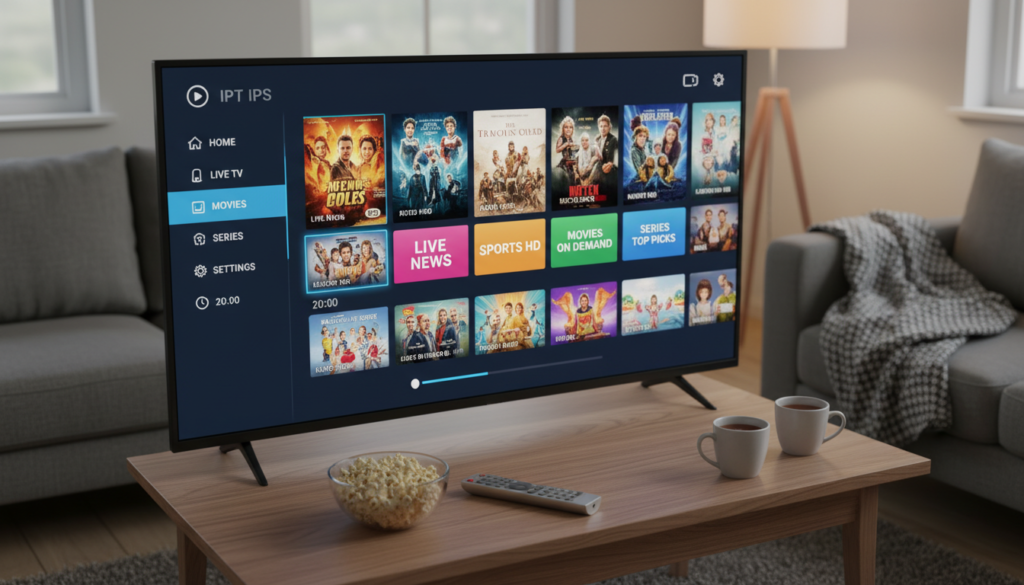
How to Fix IPTV Buffering on Smart TV by Optimizing Your IPTV App
Small app tweaks often solve playback pauses without changing hardware.
Clear cache and free wasted data
Clearing the app cache removes old files that slow menus and cause playback errors. Open your device settings, find the app, and clear cached data. Restart the player and test a stream for 10–15 minutes.
Keep the app updated
Updates add bug fixes and streaming optimizations. Check your store for the latest version and install it. An updated player often improves overall performance and reduces random stalls.
Use adaptive streaming and buffer settings
If the player supports adaptive streaming, enable it. The app will drop quality temporarily when the network dips, avoiding full stops.
Buffer size: aim for ~15–20 seconds for a balance between smooth playback and quick channel switching. Smaller buffers switch faster but risk stutter on shaky links.
Test hardware vs software decoding
Start with hardware decoding for lower CPU use and smoother video. If you see glitches, switch to software decoding and test again.
- Change one setting at a time.
- Test the same channel for 10–15 minutes.
- Note what improved playback and what didn’t.
When Your IPTV Provider or Servers Are the Real Problem
When streams stall across devices at the same time, the root cause often sits with the provider rather than your home network.
Why a perfect home connection may not help: during peak evening hours and major live events many users hit the same server pools. Overloaded servers or poor load balancing at the provider end can cause buffering even when your plan is fast.
Spotting provider-side signs
Look for these red flags: multiple channels buffer at once across different devices, friends on other networks report the same stalls, or backup streams play while the main stream fails.
Quick network rule-out you can do
Test a public service like YouTube at the same time. If that plays fine while your iptv service struggles, the issue likely sits with the provider or routing rather than your Wi‑Fi or Ethernet.
What to ask your provider
- Do you have alternate streams or mirror URLs I can try?
- Where are your servers located — Canada/US or overseas?
- What are your uptime targets and do you use load balancing for peak events?
Practical next steps: keep a short log of channels, exact times, and duration of stalls. That evidence helps the provider diagnose routing or server faults instead of offering generic suggestions.
“If the provider stays consistently overloaded, a more reliable service or upgraded infrastructure may be the only lasting fix.”
Stop ISP Throttling and Poor Routing That Triggers Buffering
Even with a fast plan, your evening streams can slow dramatically because of carrier policies or bad internet paths.
Signs your provider may be throttling: playback is smooth during the day but buffering spikes every evening. Your speed test may still show high numbers while video stalls. That mismatch often points at isp throttling rather than your home gear.
Why poor routing causes random freezing
If streams come from overseas servers, traffic may travel congested routes. That adds latency and packet loss. You get random freezing or short stalls even when local internet looks fine.
Simple tests that confirm throttling vs congestion
- Compare the same channel at different time—repeatable evening stalls suggest throttling.
- Run a speed test while streaming; good numbers plus poor playback hints at traffic shaping.
- Try the provider stream with and without a VPN; a clear VPN improvement points at isp or routing issues.
“If only certain services slow while general browsing stays fast, suspect targeted throttling or bad routing.”
Next steps: log times and affected channels. If the pattern matches throttling or route problems, a properly set up VPN can help. That setup is covered in the next section and often restores consistent playback without changing your plan or hardware.
Using a VPN for IPTV Buffering on Smart TV
Using a VPN often restores steady playback by rerouting traffic away from congested or blocked paths.
When a VPN helps: it can hide your streaming traffic from isp throttling, bypass geo blocks, and sometimes improve routing to distant servers. In Canada, start with a server in your province or a nearby US location for lower latency.
Key settings that affect streaming
Pick a fast protocol like WireGuard when available. Test UDP versus TCP—UDP usually gives better speed, while TCP can be steadier on shaky internet.
Server choice and split tunneling
Try a nearby server first, then test a server near your iptv service if you need regional access. Use split tunneling or app/site filters so only the iptv app uses the VPN and the rest of your devices stay on the normal connection.
Reliability tips and limits
Enable the kill switch and auto-reconnect so brief VPN drops don’t crash your stream. Remember, a VPN won’t fix a weak Wi‑Fi signal, a slow base plan, or an overloaded provider. If those remain, revert to Ethernet, router fixes, or a different service.
“Connect the VPN first, then open the app so the player starts with the correct route.”
Conclusion
Begin with fast, low-effort checks; the right test points you toward the lasting solution.
,Start with quick reboots, a stream switch, and a local speed check. These steps often show whether buffering comes from your internet connection, Wi‑Fi, or the iptv app.
Move next to Wi‑Fi placement or an Ethernet cable. If many channels lag, note times and ask your iptv provider while testing a vpn for routing or throttling issues.
Pick one improvement today — clear cache, try 5 GHz, plug in Ethernet, update the app, or test a vpn — then re-check the same channel at the same time. Small, targeted changes usually restore steady streaming quality and performance. You can get a smoother viewing experience once the weak link is found.